Convoy
Create a convoy, invite people by link, QR code or ID, follow live positions, use the walkie-talkie and SOS, and leave cleanly.
A convoy is a group riding together where everyone sees everyone else’s live position on the map. The same connection carries the walkie-talkie (push-to-talk), the trail reports and the SOS. Joining works without an account, as a guest — creating a convoy needs an account.
1. Creating a convoy
- In the bottom bar, tap the Community tab.
- Tap the Convoy tile. If you are not in a convoy yet, the Convoy dialog opens.
- Switch to the Create tab.
- Type a name into New Convoy Name (the hint shows “e.g. Transylvania Trip”).
- Tap Create.
- You get “Convoy created! ID: …”. You are now the host and already inside the convoy — your position starts going out immediately.

If you are using the app as a guest, tapping Create first shows “You’re using DirtMap as a guest” with a Create account button. After you register you stay the same user and nothing is lost. Joining still needs no account.
The free size cap and what Premium changes
- A free account can create convoys too, but they hold up to 4 riders, and that count includes you. The note under the Create button says so: “Free convoys hold up to 4 riders.”
- Go Premium for unlimited riders opens the subscription sheet. With Premium the convoy has no size cap.
- The cap always belongs to the person who created the convoy. If somebody cannot get in because it is full, their own Premium does not help — the host has to upgrade.
2. Inviting people: link, QR code, ID
Once you are in a convoy, Community → Convoy opens the management dialog instead (its title is the convoy name).
- Tap Share convoy (the QR icon).
- The sheet gives you three things at once:
- the QR code — the easiest way when people are standing next to you;
- the link, in the form
https://dirtmap.eu/join/<id>; - the Share button, which opens your phone’s share sheet with a ready message: “Join my convoy ”…” in DirtMap — tap the link, no account needed:”.
- Tapping the link copies it (“Link copied to clipboard.”), so you can paste it anywhere.
- Third way: tap the ID: … line at the top of the management dialog to copy the ID itself (“ID copied to clipboard!”). That one you can also read out over the radio or the phone.
Always send the https link, not just the ID. WhatsApp, SMS and mail apps only turn an https link into something tappable.
What a recipient without the app sees
The link opens a web page (dirtmap.eu/join/<id>) with:
- the heading “Join my convoy in DirtMap” and a one-line explanation;
- an Open in DirtMap button — if the app is installed, this takes them straight in;
- “No account needed — you can join as a guest.”;
- the Convoy ID spelled out, with the hint “No app yet? Install DirtMap, then Convoy → Join and enter this ID.”;
- Google Play and App Store buttons.
3. Joining a convoy
By link (the easy way).
- Tap the link you were sent. DirtMap opens and the Convoy invite dialog appears: “Do you want to join this convoy?” plus the ID.
- Tap Join.
By QR code.
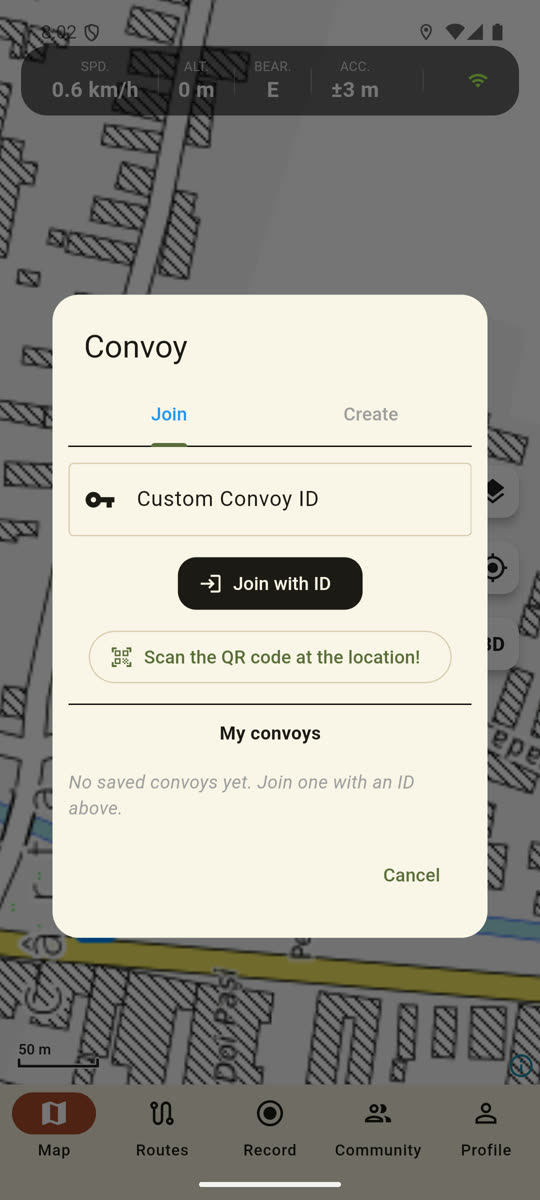
- Go to Community → Convoy → Join tab.
- Tap Scan the QR code at the location!. The first time, the app asks for camera permission.
- Point the camera at the QR code on the other phone’s screen — it joins as soon as the code is read.
By ID.
- Go to Community → Convoy → Join tab.
- Type the ID you were given into Custom Convoy ID.
- Tap Join with ID.
Back into an earlier convoy. Lower down on the same tab, My convoys lists the convoys you have joined before — they stay there even after you leave. Tap one to rejoin without a code. The bin icon next to it is Remove from list.
A successful join shows “Joined: …”. On iPhone you may then see Keep convoy live in the background: “For your position to stay live when the screen is locked, set Location to “Always” for DirtMap.” — Open settings takes you to the right place.
4. Who is where — members on the map
- At the bottom of the management dialog, Members: lists everyone with their current speed. Tap a name and the map jumps to that person.
- On the map every member is a coloured dot with a name chip. The host is red, everyone else gets their own colour. Your own position is not a dot but the heading chevron.
- If no position has arrived from someone for more than 60 seconds, their dot turns grey and faint, and the chip shows a ⚠ and the word “offline”. Almost always this is lost signal, not a fault.
- The host’s breadcrumb trail is drawn as a red line on everyone else’s map, but only if the host turned it on: the Share trail with members switch in the management dialog (off by default, and only the host sees it). Where the line is dashed, the host was offline.
5. Walkie-talkie (push-to-talk)
The microphone button in the bottom-right corner of the map only appears while you are in a convoy. It sends short voice messages — 15 seconds maximum — to everyone in the convoy, like a CB radio.
- Tap the microphone button. It turns red, pulses and shows Stop. The first time, it asks for microphone permission.
- Say what you need to say.
- Tap the button again to send. If you do not, the recording stops by itself: about one and a half seconds of silence sends it, and 15 seconds is the hard limit.
- On everyone else’s phone the message plays automatically, and a red badge at the top of the map shows ”… is talking”.
Worth knowing:
- A tap shorter than half a second sends nothing, so an accidental touch never goes out.
- If there is no speech at all in the first 3 seconds, the recording cancels itself.
- Messages older than 30 seconds are not played. This is live radio traffic, not voicemail.
- No signal? The message stays on the phone and uploads by itself once the network is back.
- Settings: management dialog → Voice settings. There you find Mute mode (silence incoming messages), Auto play and Volume.
- In the car (Android Auto or CarPlay) the Talk / Stop buttons do the same thing, and the audio comes out of the car speakers.
6. Trail reports
Report pins on the convoy map (fallen tree, deep water, mud trap, closed gate, viewpoint, danger) appear on every member’s map at the same time, and tapping one shows its description.
In the management dialog, the eye icon next to Members: is the Show/hide reports switch, which takes them off your map.
In the current release the phone has no button for filing a new trail report — use the walkie-talkie instead, which is how convoys pass this on today. A pin that does show up is normally an SOS.
7. SOS
A convoy SOS is sent from the car screen (Android Auto or CarPlay), because that is what you can reach safely while driving.
- On the car screen, tap SOS.
- Confirm: “This broadcasts your location to the convoy. No message is sent.” — tap Send SOS.
- Every convoy member’s phone shows a red alert for 10 seconds: “⚠️ SOS ALERT! ⚠️ / Someone is in trouble in the convoy!”, and the button on the alert jumps the map straight to the position.
- An SOS is position plus a fixed text; you cannot type a message: “SOS — need help, see my location”.
- You can only have one live SOS at a time. Pressing it again clears the one you sent.
- If you are in a competition, the same button goes to race control instead of the convoy.
- SOS needs a connection. With no signal it does not go out and the car button never confirms.
8. Sharing a route with the convoy
There is no “push this route to everyone” button in the convoy. Instead, make a share link for the route and drop it wherever the group is talking:
- Bottom bar → Routes tab → My Routes.
- Open the three-dot menu on the route and choose Share.
- Under Public link, tap Create public link (“Anyone with this link can view and import these routes.”).
- Tap Copy and paste the link into the group chat — or use Send to mail it.
- Whoever taps it gets Import shared routes? — after Import the routes land in a new folder on their phone.
9. Convoy view on the map
While you are in a convoy, a group icon appears on the right-hand rail of the map, below the 3D button: Convoy view. This is the view for keeping the whole group in sight.
- Tap Convoy view. The message reads: “Convoy view on — your zoom stays, the map lies flat, the car is still followed”.
- From then on the map stops zooming itself according to your speed and stops tilting — but it still follows you, so you can set by hand the zoom level at which the whole group fits.
- Tap the same button to turn it off (“Convoy view off — speed zoom and 3D are back”). Tapping 3D while convoy view is on turns convoy view off and gives you 3D back.
The switch is remembered for your next trip, but it only does anything inside a convoy.
10. Leaving and deleting
Leaving (anyone). Management dialog → the orange Leave button. You get “You left the convoy.” Your membership is removed, the convoy carries on for everyone else, and it stays in My convoys so you can rejoin without a code.
Deleting (host only). Management dialog → the red Delete button → “Are you sure you want to permanently delete this convoy and remove all members?” → Delete. The convoy and every membership in it are gone, and you get “Convoy deleted.”
If the daily recording was running while you were in the convoy, your leg of the ride is uploaded when you leave, and that is what the Convoy 3D replay on the Daily recordings screen is built from. Without a recording running, being in a convoy records nothing.
11. What it costs in data
- Your position goes out every 5 seconds while you are moving.
- When you are stopped (less than 5 metres since the last upload), the app backs off to a heartbeat every 15 seconds. Parked up, that is a fraction of the data.
- The member list is refreshed every 10 seconds for the first 3 minutes after joining, then every 30 seconds.
- The walkie-talkie is the expensive part, because it uploads audio. On a tight data plan, keep the messages short.
- After 60 seconds of silence from you, everyone else sees you greyed out and marked “offline”.
12. LoRa tracker — convoy with no coverage
Full details — picking a device, pairing, range and limits: LoRa tracker.
A convoy normally shares positions over the internet. Where there is no cell signal, a LoRa tracker takes over: a palm-sized radio with its own GPS and battery, paired to the phone over Bluetooth.
One-time setup: Profile → LoRa tracker → Search for device → pick the tracker. You can rename it there (e.g. “Car 2”) and see its battery. Every convoy member does the same with their own unit.
On the trail: member positions also travel by radio, device to device. They appear in the same member list and on the same map as online — marked with an antenna badge and the age of the last packet (”45s”). It works in airplane mode as long as Bluetooth is on.
Range: terrain dependent. A few hundred metres in a wooded valley, kilometres in the open or along a ridge; members in between relay each other’s packets, so the chain reaches further than any single hop.
If something goes wrong
“This convoy is full (4 riders).” You are trying to join a free convoy that has filled up. Only the host’s Premium fixes this — your own subscription does not unlock it.
It won’t let you create a convoy. You are a guest. In the “You’re using DirtMap as a guest” dialog choose Create account; you keep the same user and everything you already did.
The link “does nothing” in the chat. You probably sent the bare ID. Go back to Share convoy and use the Share button — that message contains the full https://dirtmap.eu/join/… address.
The QR code won’t scan. Check that you granted camera permission. If not, the other phone’s built-in camera app reads the same code and gives back the same link.
Everyone is grey and “offline”. Mobile data dropped. When it comes back, the app reopens the connection and resends positions on its own — no restart needed.
Your position freezes with the screen locked (iPhone). Location permission has to be Always. The Open settings button in the Keep convoy live in the background dialog takes you there.
“Permission denied. Enable it in settings.” That is the microphone. Grant DirtMap microphone access in the system settings and the walkie-talkie works.
Nobody hears you. Check Mute mode and Auto play under Voice settings on their phones. And remember that anything older than 30 seconds is never played.
Talking doesn’t start in the car. If the car screen says “The phone app isn’t running. Open it to talk.”, open DirtMap on the phone and try again.
Someone appears twice or is stuck in the list. Leave the convoy and rejoin it from My convoys — that rebuilds both the membership and the live connection.